TradingView alerts automation
With OctoBot cloud, you can easily turn any TradingView price alert, indicator or Pine Script strategy into trades. Trading can be on your favourite exchanges or risk free with simulated funds.

To trade on any TradingView alert, you first need to configure the alert webhook for your traded pair if not done already.
If you are not sure about how to use TradingView alerts, have a look at our TradingView trading tutorial.
Automating trading on TradingView price alerts
TradingView can automatically send an alert when the price of an asset crosses a given value.
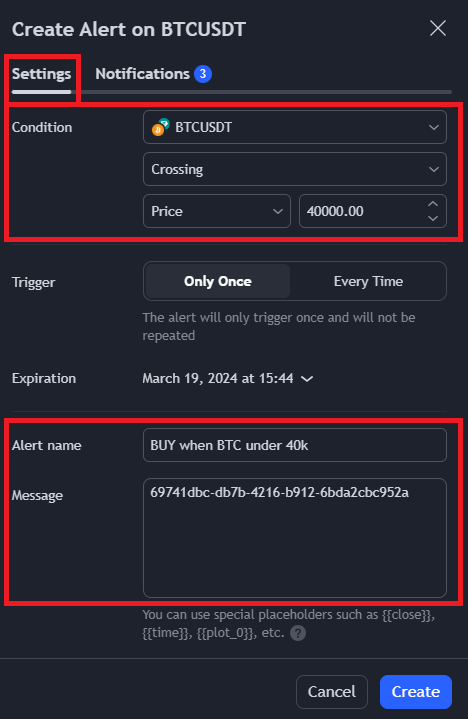
This price alert that will notify my automation of a buy order identified by d4f18425-b3b6-4e6b-94d0-61f362aa10c7 if BTC crosses 40.000 USDT.
Automating trading on TradingView indicators
TradingView can automatically send an alert when something happens on a indicator.
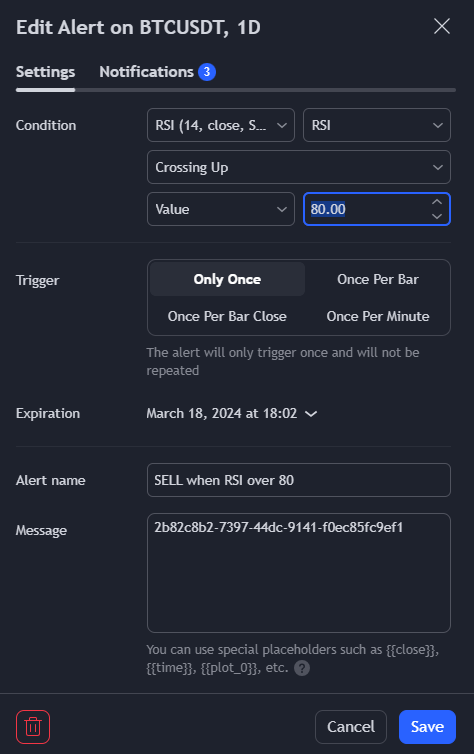
This indicator alert using the Relative Strength Index (or RSI) that will notify my automation of a sell order identified by 2b82c8b2-7397-44dc-9141-f0ec85fc9ef1 if the RSI value crosses 80, which I consider as a sell signal.
An indicator alert can be a simple event such as crossing an indicator value or a much more advanced condition such as Bearish Divergences or channel exiting as shown in the RSI indicator example above.
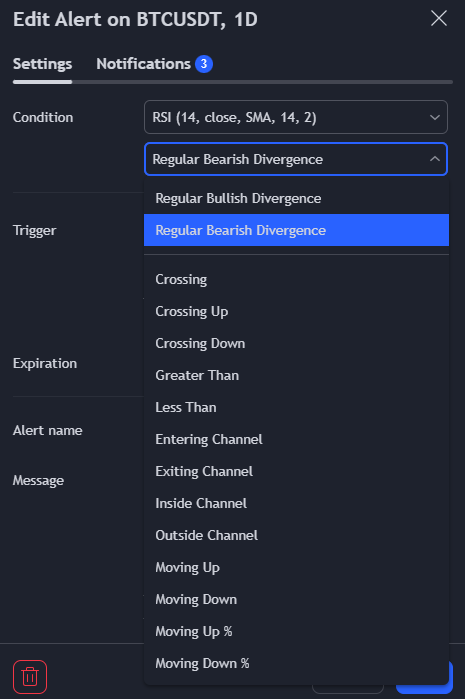
Any TradingView indicator (built-in or custom, paid and free) can be used to send alerts and automate your trades using your TradingView OctoBot automations.
Automating Pine Script strategies
TradingView can automatically send an alert when your Pine Script strategies create orders.
To send alerts from a Pine Script strategy, use the alert_message parameter from Pine Script strategy functions which can create orders.
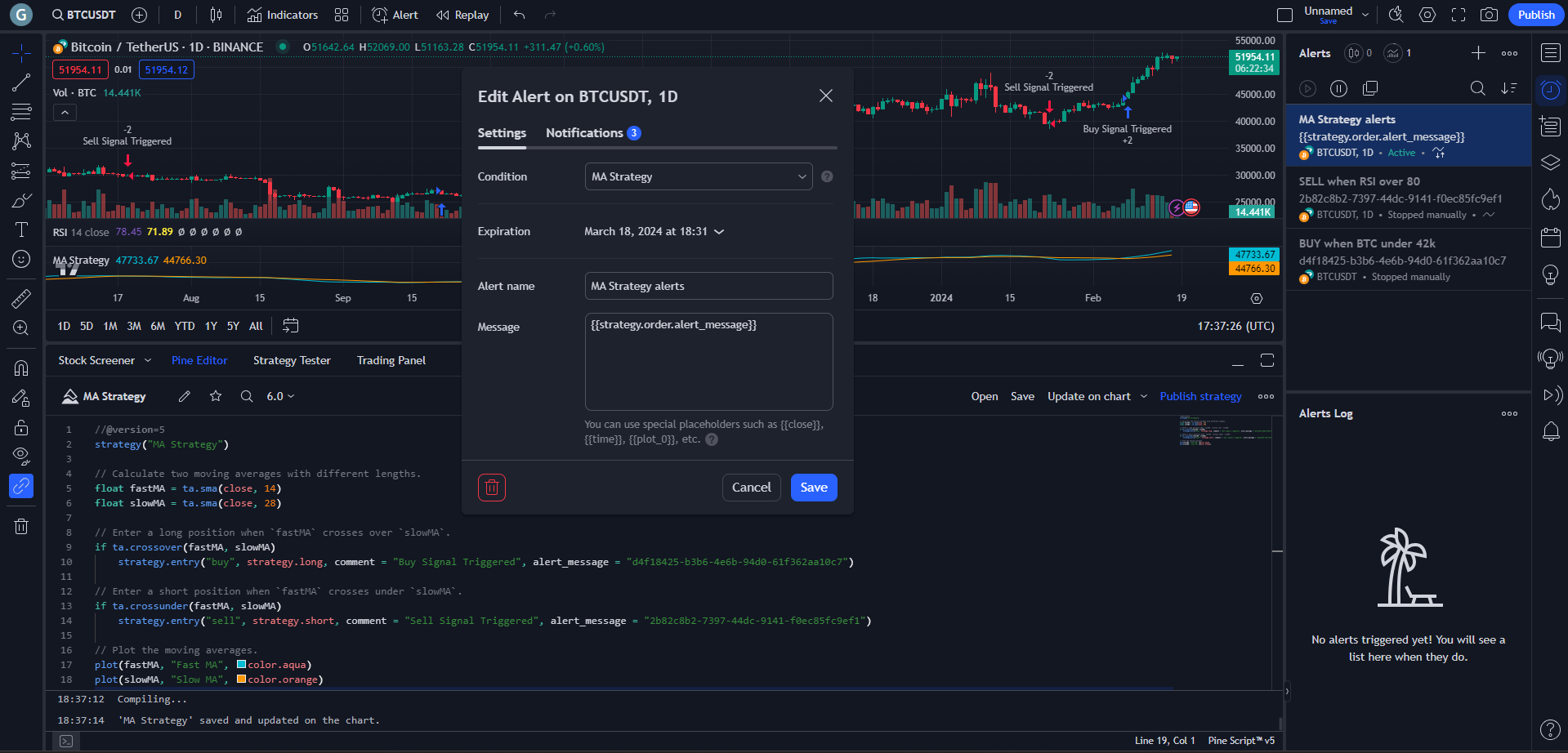
To send alerts with your Pine Script strategy, create a new alert and make sure to:
- Select the name of your strategy as the condition
- Replace ALL the message content with exactly
{{strategy.order.alert_message}}
In the strategy's Pine Script code, add alert_message="yourAutomationIdentifier" to your strategy entry, exit or close calls.
Example with a d4f18425-b3b6-4e6b-94d0-61f362aa10c7 automation identifier:
strategy.entry("Buy", strategy.long, comment="Buy Signal Triggered", alert_message="d4f18425-b3b6-4e6b-94d0-61f362aa10c7")
Learn more TradingView Pine Script strategies automation on the TradingView strategy automation tutorial.
Using TradingView Pine Script strategies to automate you trading is very powerful as you can also use the TradingView integrated strategy tester to optimize your strategy.
TradingView custom automations
Additionally to the automation defined from your TradingView OctoBot user interface, it is also possible to use alerts with custom content.
This format allows for more flexibility in the way automations are executed by specifying your automation content within the alert message.
Example: market BUY order of 0.001 BTC on a bot with id 123
SYMBOL=BTCUSDT;SIGNAL=BUY;VOLUME=0.001;BOT_ID=123
View all examples.
Custom automation parameters
| Parameter | Example 1 | Example 2 | Details |
|---|---|---|---|
SYMBOL | BTCUSDT | ETH/USDT | You traded symbol, can also be {{ticker}}. |
SIGNAL | BUY | CANCEL | Whether to create a buy, sell or cancel an order. |
ORDER_TYPE | LIMIT | MARKET | Type of the order to create (MARKET, LIMIT, STOP). Default value: MARKET. |
VOLUME | 0.01 | 50q | The amount to use. Follows the amount syntax. |
PRICE | 30000 | -10% | The price to use. Follows the price syntax. Required when ORDER_TYPE=LIMIT. |
TAKE_PROFIT_PRICE | 45000 | 10% | The price of this order's take profit. Follows the price syntax. |
TAKE_PROFIT_PRICE_2 | 50000 | 25% | The price of this order's Nth take profit. Follows the price syntax. Entry funds are evenly split among take profits unless a TAKE_PROFIT_VOLUME_RATIO is set for each take profit. |
TAKE_PROFIT_VOLUME_RATIO_2 | 30 | 70 | Ratio of the entry order volume to include in this take profit. When used, a TAKE_PROFIT_VOLUME_RATIO_X is required for each take profit. |
STOP_PRICE | 40000 | -25% | The price of this stop loss. Follows the price syntax. Required when ORDER_TYPE=STOP. |
TRAILING_PROFILE | filled_take_profit | filled_take_profit | Enables trailing orders according to the given trailing profile. Supported profiles: filled_take_profit. |
TAG | entry1 | exit2 | The tag of this order, or tag of orders to cancel. |
REDUCE_ONLY | false | true | Whether the created order should be reduce only or not. Only used in futures trading. Default is false. |
LEVERAGE | 10 | 2 | The updated leverage value to use. Only used in futures trading. |
BOT_ID | c403ee03-ba4c-4d9d-9d78-ad692333a291 | b403ee03-ba4c-4d9d-9d78-ad692333a292 | The ID of your OctoBot to run this signal on. |
Parameters must be separated using a ; character and can be included in any order.
Note: The BOT_ID parameter is required. Your BOT_ID is the last segment of your TradingView OctoBot URL.
Example: if your OctoBot URL is https://www.octobot.cloud/bots/0280badc-e884-4637-bb86-44444444, then your BOT_ID is 0280badc-e884-4637-bb86-44444444.
BOT_ID=0280badc-e884-4637-bb86-44444444;SYMBOL=BTCUSDT;SIGNAL=BUY;ORDER_TYPE=LIMIT;VOLUME=45q;PRICE=-3%
Custom automation examples
A
MARKET BUYorder using20units of quote asset with dynamictickerwith bot id123.
SYMBOL={{ticker}};SIGNAL=BUY;VOLUME=20q;BOT_ID=123
A
LIMIT BUYorder of0.01 ETHat-3%of the current price with astrategy-1tag.
SYMBOL=ETHUSDC;SIGNAL=BUY;ORDER_TYPE=LIMIT;VOLUME=0.01;PRICE=-3%;TAG=strategy-1;BOT_ID=123
A
LIMIT BUYorder of45 USDTat-3%of the current price immediately followed by atake profit at +10% of the buying priceand astop loss at -20%as soon as the the initial BUY limit order is filled.
Note: when bothTAKE_PROFIT_PRICEandSTOP_PRICEare provided, the created take profit and stop loss will be OCO (one cancels the other) orders. In this case, only the stop order will be pushed to the exchange. It will then be replaced by its take profit if the take profit is reached fist.
OCO orders are in beta test, instabilities might happen.
SYMBOL=BTCUSDT;SIGNAL=BUY;ORDER_TYPE=LIMIT;VOLUME=45q;PRICE=-3%;TAKE_PROFIT_PRICE=10%;STOP_PRICE=-20%;BOT_ID=123
A
MARKET BUYorder of6 SOLfollowed by3 take profits at 5%, 10% and 20%from the buying price. Here, each take profit will have a quantity of2 SOLas the bought amount is split between take profits.
SYMBOL=SOLUSDC;SIGNAL=BUY;VOLUME=6;TAKE_PROFIT_PRICE=5%;TAKE_PROFIT_PRICE_2=10%;TAKE_PROFIT_PRICE_3=20%;BOT_ID=123
A
MARKET BUYorder of6 SOLfollowed by3 take profits at 5%, 10% and 20%from the buying price. Here, take profits will respectively trade 1, 2 and 3 SOL, which corresponds to17,33and50% of the entry amount.
SYMBOL=SOLUSDC;SIGNAL=BUY;VOLUME=6;TAKE_PROFIT_PRICE=5%;TAKE_PROFIT_PRICE_2=10%;TAKE_PROFIT_PRICE_3=20%;TAKE_PROFIT_VOLUME_RATIO=17;TAKE_PROFIT_VOLUME_RATIO_2=33,TAKE_PROFIT_VOLUME_RATIO_3=50;BOT_ID=123
CANCELallSOL/USDCorders with thestrategy-1tag.
SIGNAL=CANCEL;SYMBOL=SOLUSDT;TAG=strategy-1;BOT_ID=123
For futures trading
A futures trading
REDUCE_ONLYMARKET SELLorder of3 SOL.
SYMBOL=SOLUSDC;SIGNAL=SELL;VOLUME=3;REDUCE_ONLY=true;BOT_ID=123
A futures trading
MARKET BUYorder of200 USDCwhich also configures theSOL/USDCcontract leverage to3.
SYMBOL=SOLUSDC;SIGNAL=BUY;VOLUME=200q;LEVERAGE=3;BOT_ID=123
Trailing profiles
Trailing profiles are in beta test, instabilities might happen.
When set to a valid profile, TRAILING_PROFILE enables trailing orders according to the given profile. Here is how profiles work:
filled_take_profit: Operates with a stop loss associated to more than 1 take profit. When a take profit is filled, the stop loss price will be updated to first the buy order entry price and then the price of the previously filled take profit. This profile is useful to be sure to alway close your trade in profit as soon as at least one take profit has been reached.
Automated TradingView strategies examples
- Death and Golden Cross Strategy: buy and sell based on Death and Golden Crosses.
- Bull market RSI Strategy: buy and sell using RSI to increase bull market profits.
- Custom TradingView strategy tutorial: learn how to trade using any TradingView strategy.
Automation rate limit
| Automation type | Hourly rate limit | Average execution time |
|---|---|---|
| 20 | 10 seconds | |
| Webhook | 20 | 5 seconds |
In order to reduce the impact of misconfigured alerts and prevent exploits of the system, there is a limit to the number of times a given automation can be triggered over 60 minutes.
The amount of bots and automations you can have is unlimited but each individual automation can be triggered at most 20 times over 60 minutes. Moreover, up to 80 automation triggers per OctoBot account can be processed over 60 minutes. Any attempt to breach this limit without prior written consent from the OctoBot team can trigger a temporary or permanent ban of the associated account(s).
Please contact us if you need to increase this limit.
The average execution time is the time measured between when TradingView sends the alert and when it is executed by OctoBot. This is an average, this time may vary.
This variation is small for webhooks but can, in rare cases, reach several tens of seconds for email alerts. This is due to the technical constraints associated with email transfer, which is a less optimized process than a simple webhook call.
TradingView alerts security
The OctoBot cloud infrastructure is designed with the security in mind. It is the same when it comes to the TradingView alerts integration.
Only alerts originating from the offical TradingView website can trigger a TradingView automations.