Connecting your Coinbase account to OctoBot cloud
To automate the investment strategies of your choice on your Coinbase account, it is necessary to allow OctoBot to access a part of your account.
This is done using API Keys. API Keys are a standard authentication system that is often used to connect software together.
If you are wondering what an API Key is and why OctoBot is using it, checkout our introduction to exchanges API Keys.
Connecting to your Coinbase account with API Keys
Here are the 5 simple steps to connect to your Coinbase account with OctoBot cloud and automate your investment strategies.
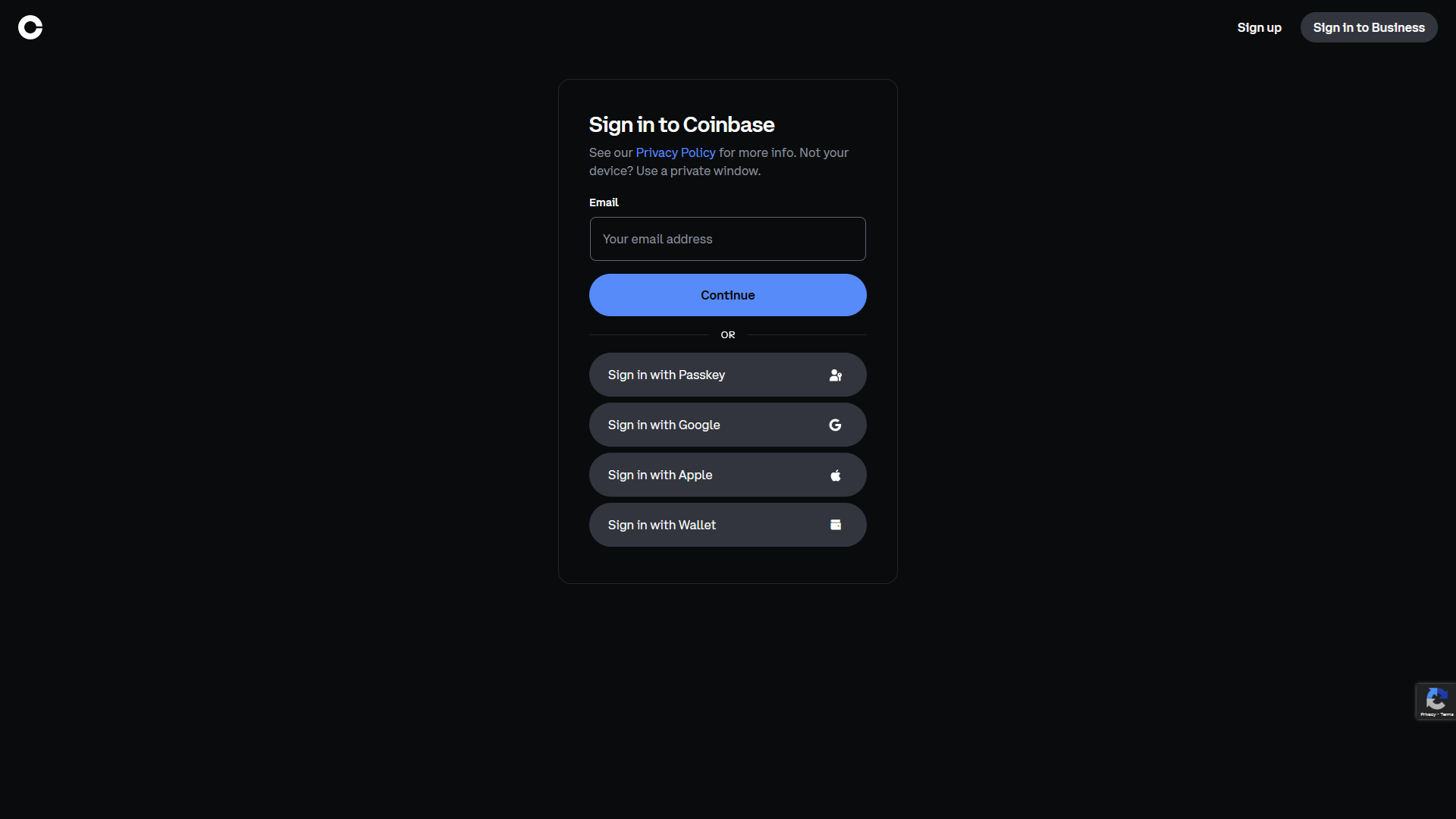
1. Log in to your Coinbase account
Go to coinbase.com and log in to your account (or create an account).
2. Go to API Management
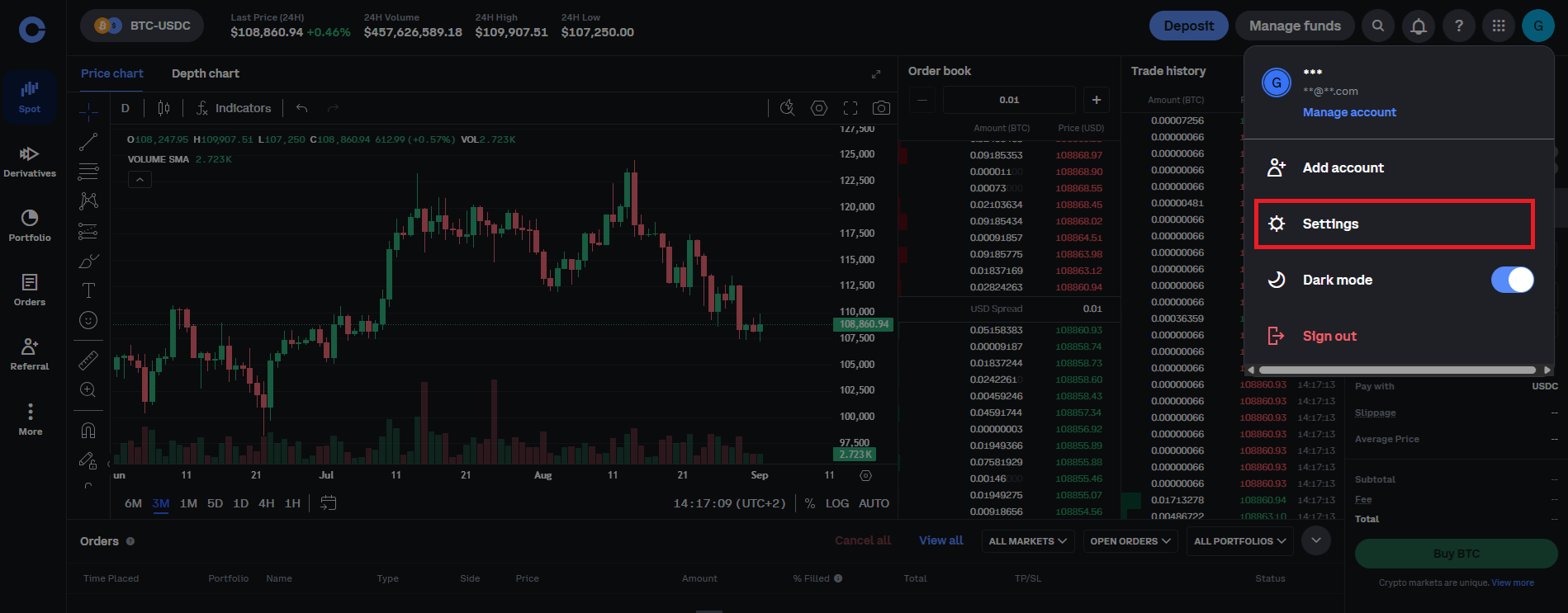
Display your account settings by clicking on your account icon and select "Settings".
3. Create a new API Key
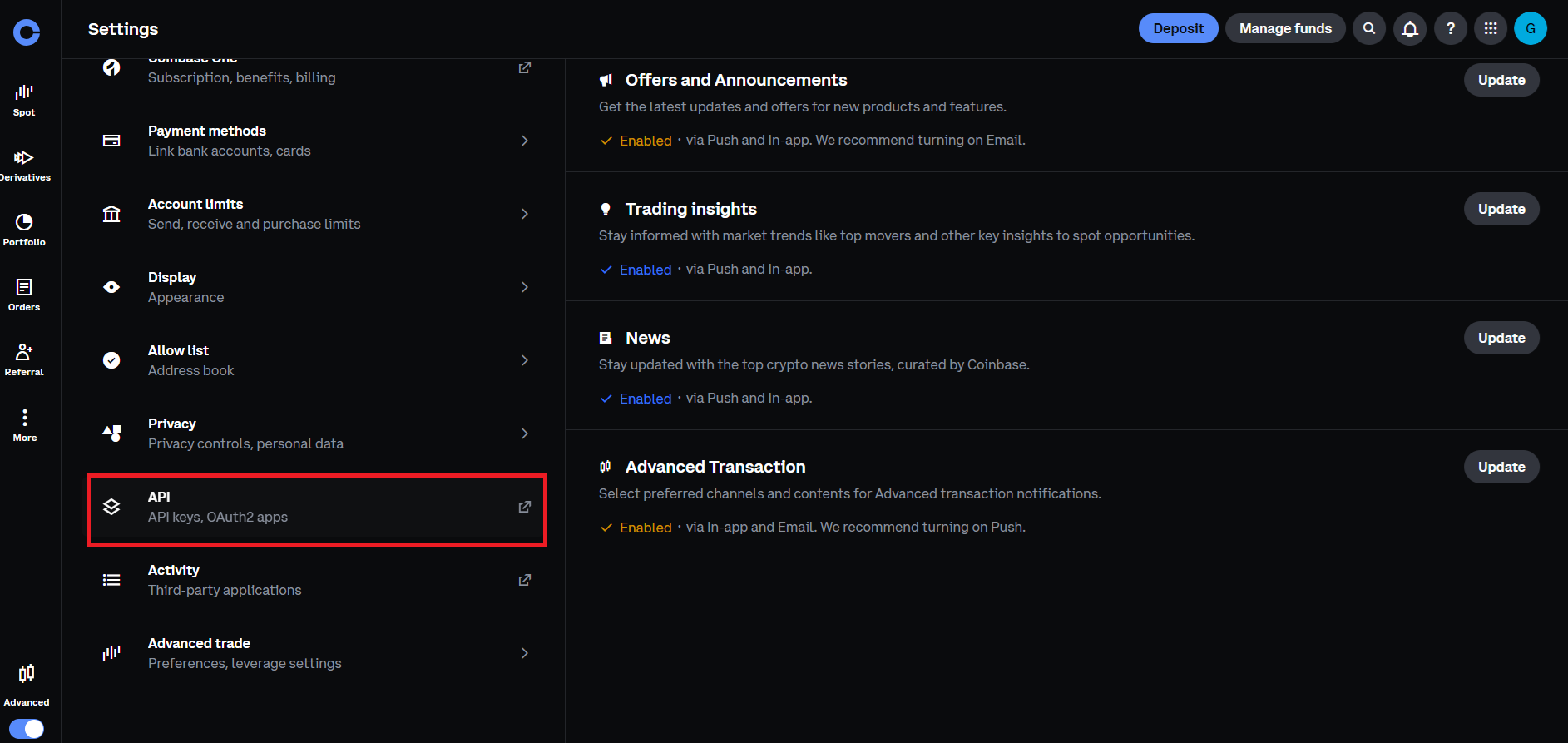
Scroll down if necessary and hit "API".
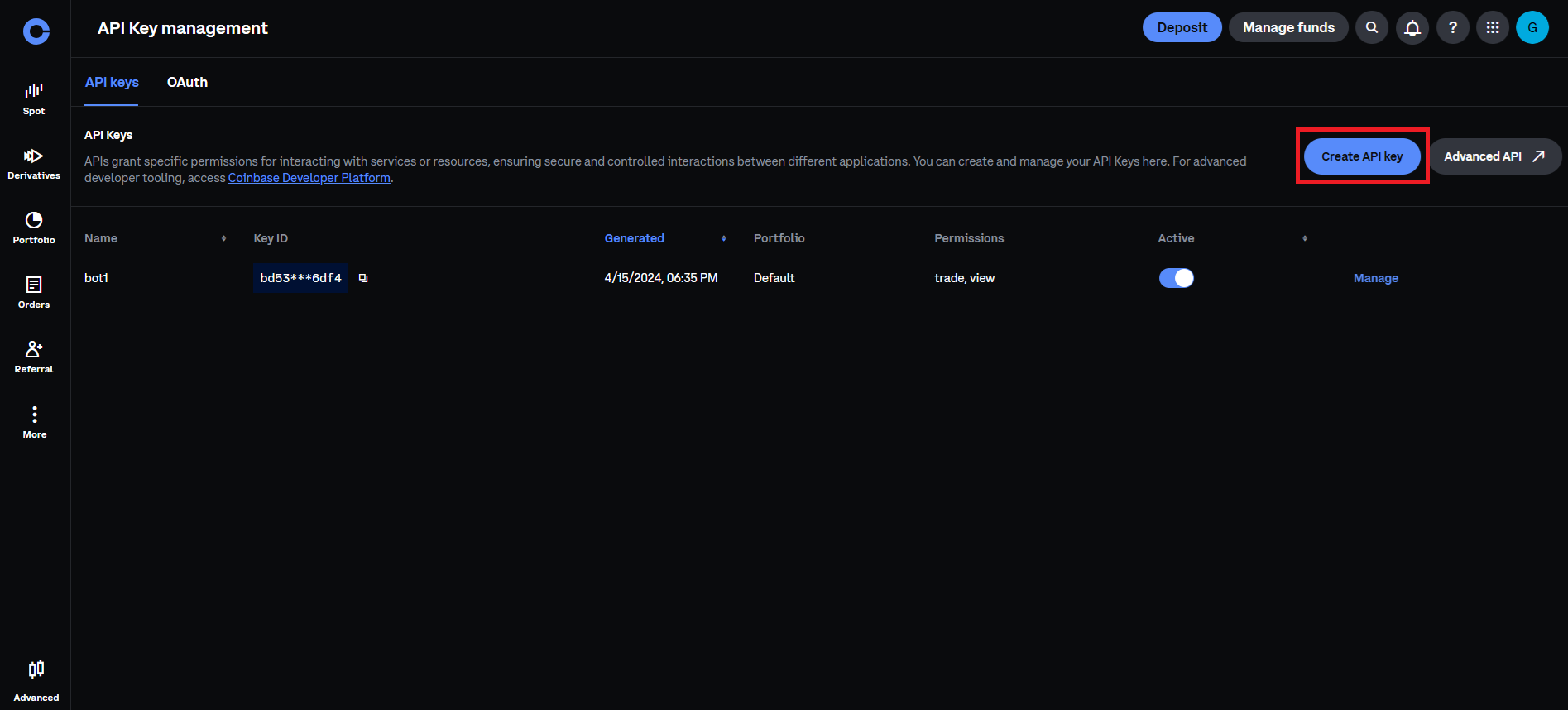
Click "Create API Key with Coinbase Developer Platform (Recommended)".
-
Name it as you wish. The name is just for you to remember the purpose of this key.
-
Select the wallet you wish to use with your OctoBot. Note: the "Default" Coinbase wallet usually contains your funds on the regular (non Advanced) version of Coinbase. Please transfer your funds to another Coinbase wallet and select it with your API key if you wish to use different funds.
-
Remember to check the "Trade" API-specific restriction.
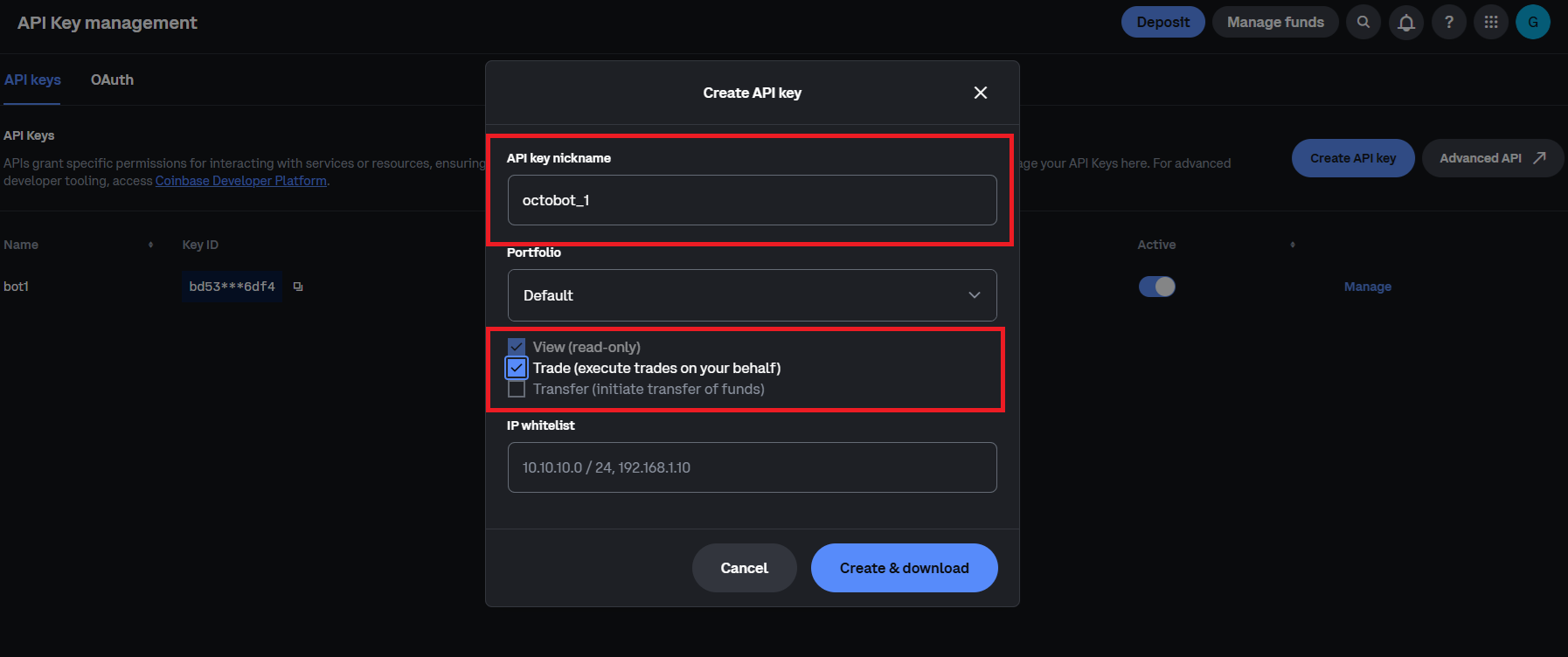
- Click the "copy" button from OctoBot cloud to copy the IP whitelist and paste the list in the
IP whitelistfield.
4. Save your API Key
Now that your key is named, the Spot Trading permission is checked and the IP whitelist is configured, click "Create & download".
Proceed with the security verification to create the API Key.
Your API Key is now created. Do not close this window as long as you are not done entering it on OctoBot cloud.
Note: Coinbase will ask you to download a file containing the API Key details. Downloading it is not necessary, do not download the file or remove it from your computer if you did.
5. Add your API Key to your OctoBot cloud account
You now have your API key details !
All you need to do is to copy and paste the values of API key name and Secret (step 4) into your Coinbase account configuration on OctoBot cloud. This can be done either when starting a trading strategy with a real account or from your profile on octobot.cloud
Note: When adding an API Key on OctoBot cloud, you can associate a name to it. As for the naming on Coinbase side, this is a free field where you can enter any name to quickly identify this API Key in the future.
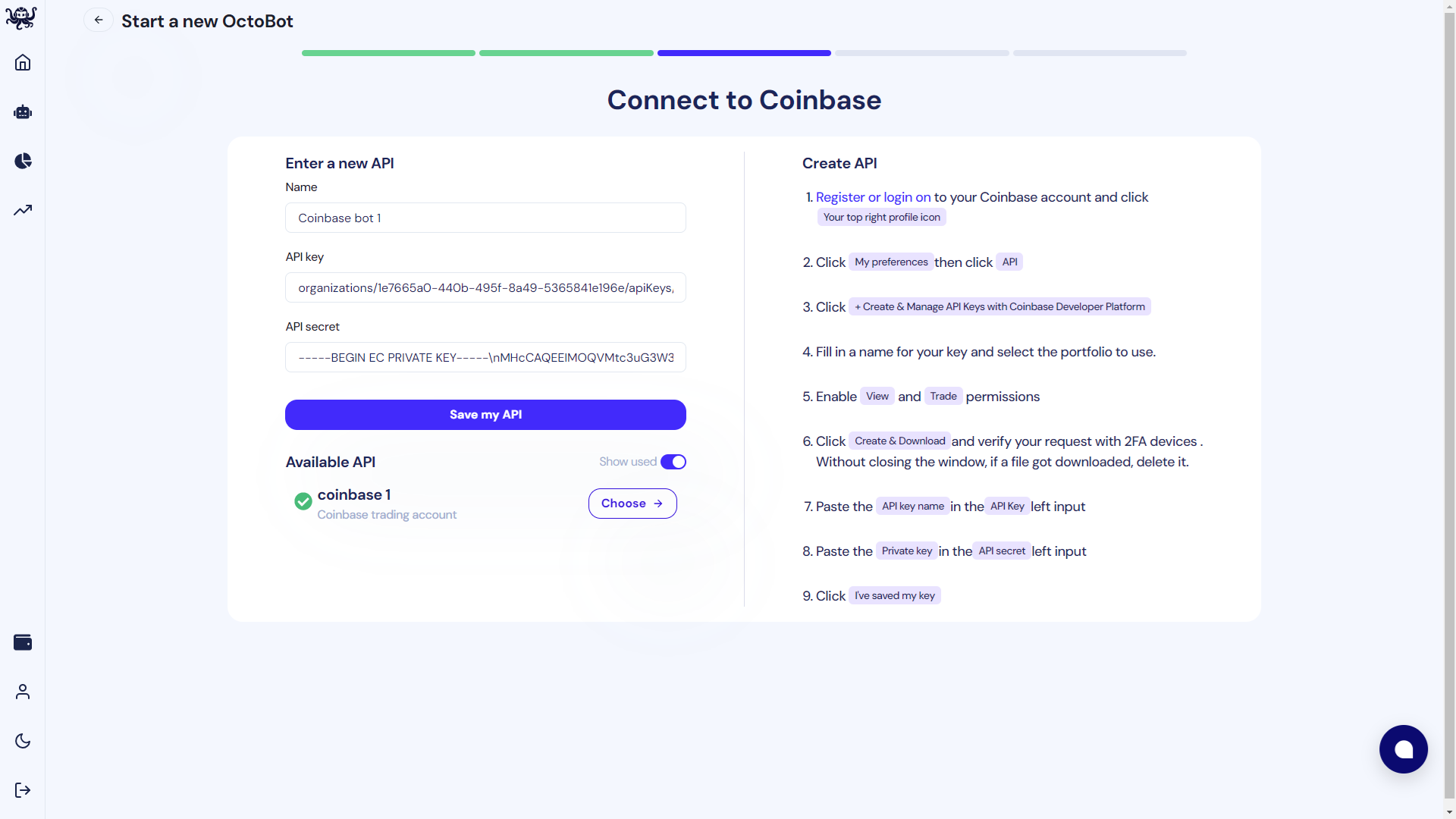
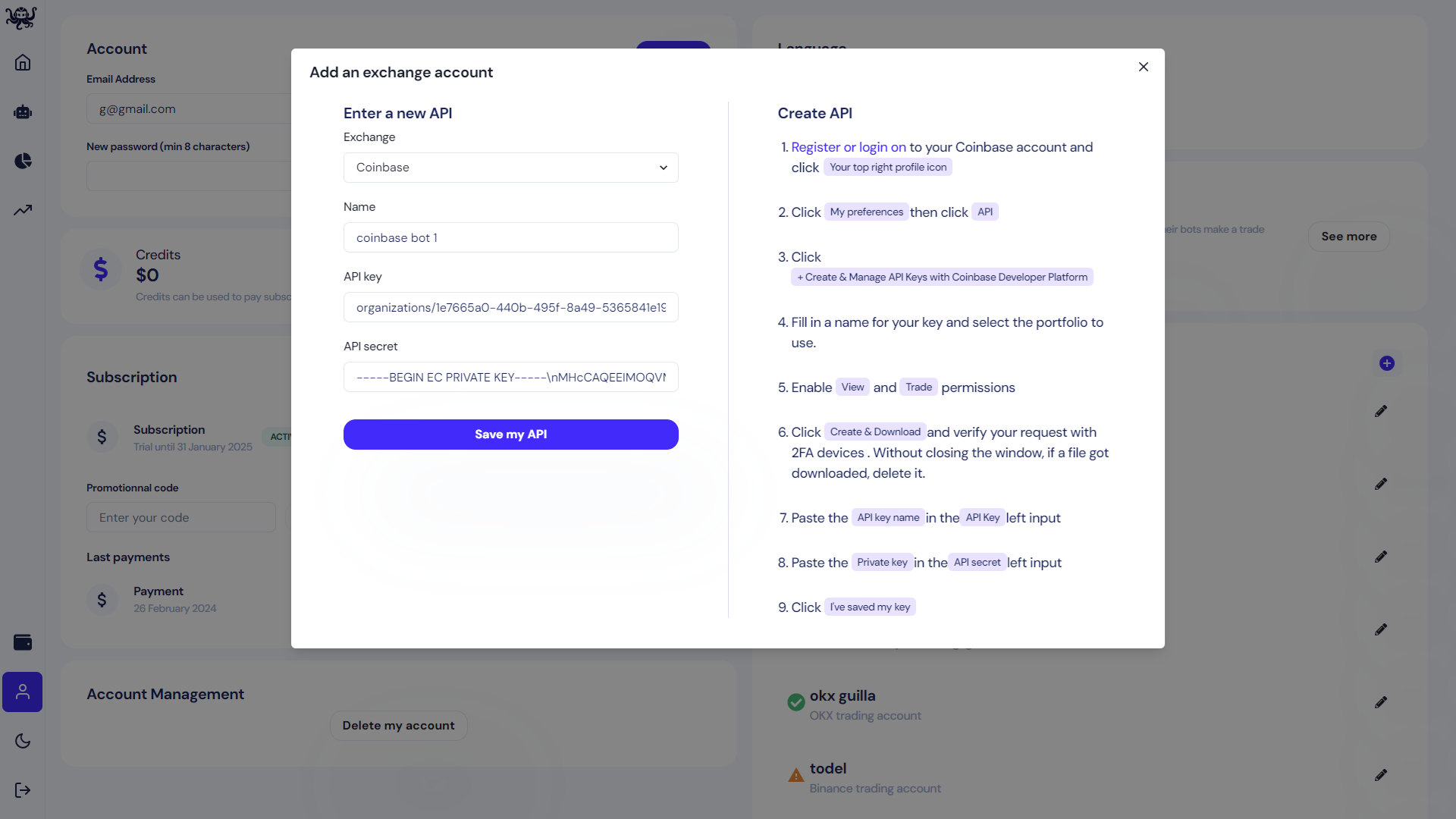
Your Coinbase account can now be used on OctoBot cloud !
Please note that when starting a bot, some of the funds available in your API key related portfolio might be sold. This include any stablecoin and fiat related funds as well as cryptocurrencies that are traded by the strategy you selected. This is is part of the portfolio optimization.
Troubleshooting
Incorrect API Keys
If you get the Incorrect API Keys error, this usually means that:
- There was an error when copy-pasting your API Key or Secret Key from Coinbase to OctoBot cloud
- You made a mistake when copying the IP whitelist
- You might have selected the wrong exchange (make sure to select Coinbase)
- Should you use ECDSA or Ed25519 API keys? You can use any, both ECDSA and Ed25519 key formats are supported.
Incorrect API restrictions: missing spot trading
If you get the Incorrect API restrictions: missing spot trading error, you need to check "Trade" as explained on step 3.
Incorrect API restrictions: withdrawals enabled
If you get the Incorrect API restrictions: withdrawals enabled error, you need to uncheck "Transfer". You can do this following the same path as on step 3.
Other questions
If you have any other question of if something is unclear, feel free to reach out to the support using the chatbox on the bottom right of the screen on octobot.cloud.